

How to Sideload APKs on Android in 2026 After Google’s Developer Verification
Google’s developer verification began on 30 September 2026. Here is what changed for sideloading, how the new advanced install flow and ADB work, and how to check an APK before you install it.

On this page
- Sideloading in 2026 at a glance
- What Google’s developer verification actually changes
- Before you sideload: check the APK first
- Method 1: Sideload a verified APK (the normal way)
- Method 2: Install an unverified app with the advanced flow
- Method 3: Sideload with ADB from a computer
- Common sideloading errors and fixes
- Does developer verification make sideloading safer?
- Frequently asked questions
Sideloading on Android changed on 30 September 2026. That is the day Google’s developer verification rules went live in Brazil, Indonesia, Singapore and Thailand, with a global rollout promised for 2027. If you install APK files outside Google Play, you have probably seen headlines saying sideloading is over. It is not, but the steps, the warnings and the risks are different from the guides written a year ago. This guide explains exactly what changed, what still works, and how to sideload an APK on Android safely in 2026, from the basic “install unknown apps” toggle to the new advanced flow and ADB.
Sideloading in 2026 at a glance
| Question | Short answer |
|---|---|
| Can I still sideload APKs? | Yes. Google says sideloading is not ending. Apps from verified developers install as before. |
| What is developer verification? | Developers must confirm their identity with Google and register their app’s package name and signing keys before it can be installed on certified Android devices. |
| Where is it enforced now? | Brazil, Indonesia, Singapore and Thailand, from 30 September 2026, through participating app stores on certified devices running Android 7 or later. |
| When does it reach everyone? | Google says 2027, for all apps on all certified Android devices worldwide. |
| What about unverified apps? | They move to a new “advanced flow” that requires a one-time setup in Developer Options, a 24-hour wait and an explicit risk acknowledgement. |
| What is not affected? | ADB installs, custom ROMs, and phones without Google Mobile Services. |
What Google’s developer verification actually changes
Google announced developer verification in August 2025 as “a new layer of security for certified Android devices”. The idea is borrowed from Google Play, where developers have had to verify their identity since 2023: anyone who wants their app to install on a certified Android phone or tablet must register with Google, prove who they are, and declare the app’s package name and signing certificate. Verification checks the developer, not the app. Google is not reviewing code, and it is not deciding which apps are allowed; it is making sure there is a real, accountable person or company behind every package name.
Google’s stated reason is scam prevention. Its own data, cited in the announcement, found more than 50 times as much malware in apps sideloaded from the open internet as in apps from Google Play, and a large share of that comes from coercion scams where a caller talks a victim through installing a fake banking or “support” app. Forcing developers to identify themselves, and adding friction to the install of anything unregistered, is designed to break that script.
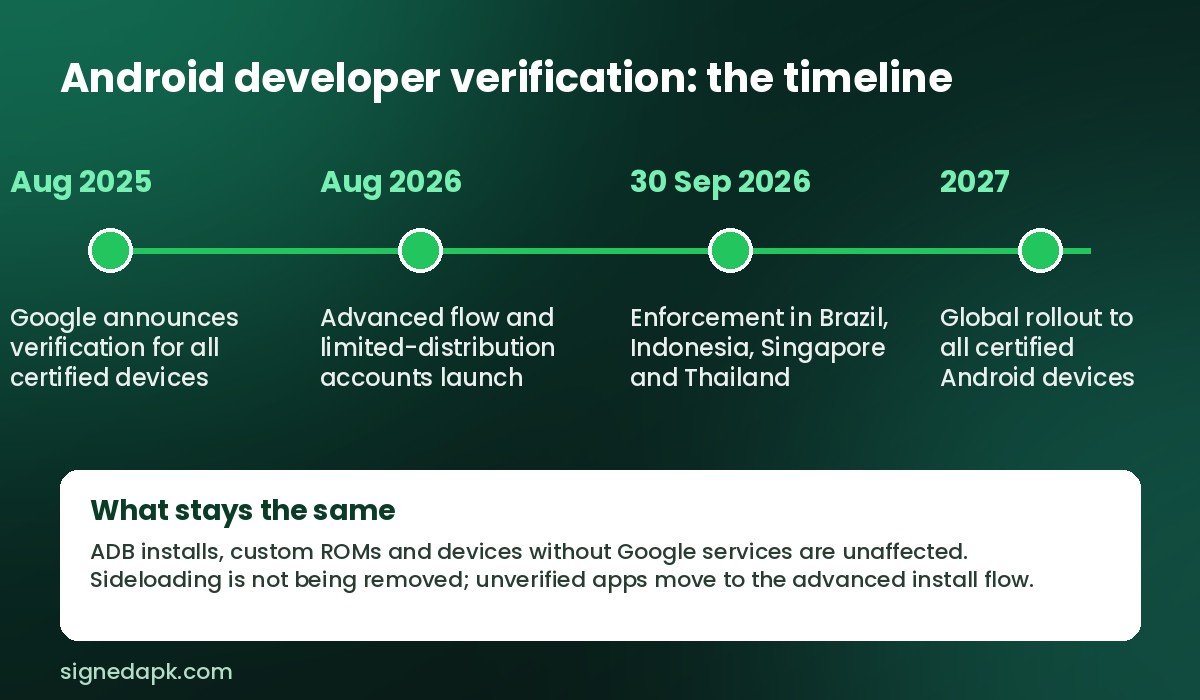
The timeline so far
- August 2025: Google announces developer verification for all apps on certified Android devices, with early access for developers from October 2025.
- March 2026: The Android Developer Console opens for developers who distribute only outside Google Play. A full account costs a one-time $25; a free “limited distribution” account allows unlimited apps on up to 20 devices without a government ID, aimed at students and hobbyists.
- August 2026: Google ships the advanced install flow for unverified apps and the limited-distribution accounts.
- 30 September 2026: Enforcement begins in Brazil, Indonesia, Singapore and Thailand. Google Play, Samsung Galaxy Store, HONOR App Market, OPPO App Market, Xiaomi GetApps, vivo V-Appstore and Transsion’s Palm Store only install or update apps from registered developers on certified devices.
- 2027: Verification expands globally to all apps on certified Android devices, including direct APK downloads.
What is not changing
Three things are worth stating clearly, because a lot of coverage gets them wrong. First, Android Debug Bridge (ADB) installs are exempt, so developers and power users can push any APK from a computer exactly as before. Second, custom ROMs such as GrapheneOS or LineageOS, and any device without Google Mobile Services, are outside the system entirely because they are not “certified” devices. Third, verified developers can still distribute their apps however they like: direct download from their own website, a third-party store, or a file shared over Bluetooth. Verification travels with the developer, not with the store.
Before you sideload: check the APK first
Whatever Android version you are on, the single biggest risk in sideloading is not the install process; it is the file. A modified or repackaged APK can carry anything from adware to a banking trojan, and it will install just as happily as the real thing. Spend two minutes on these checks before you tap anything.
- Get it from the source. The developer’s own website, GitHub releases page, F-Droid or a store with a published verification process is always better than a random mirror. On SignedAPK, every file we host has its signing certificate fingerprint published and is scanned before it goes live; our APK verification policy explains exactly what we check.
- Compare the SHA-256 hash. If the developer publishes a checksum, verify it. On Android, free tools such as Hash Droid or the built-in share-to-hash in many file managers will compute it; on a PC, use
certutil -hashfile file.apk SHA256on Windows orshasum -a 256 file.apkon macOS and Linux. - Check the signing certificate. Every APK is signed by its developer, and the certificate fingerprint never changes between legitimate updates. Apps such as App Manager or AppVerifier show the fingerprint; if it does not match the developer’s published value, or Android refuses to update an existing app because of a signature mismatch, stop.
- Scan it. Upload the file to VirusTotal or let Google Play Protect scan it at install time. One or two detections from obscure engines are often false positives; a dozen are not.
- Read the permissions. A wallpaper app that wants Accessibility access, SMS and device-admin rights is not a wallpaper app.
Method 1: Sideload a verified APK (the normal way)
If the app comes from a verified developer, which from 2027 will be every legitimate app you are likely to want, the install process on Android 13 through Android 16 is the same as it has been for years. Android asks you to grant permission per source app, not globally, so you will do step 3 once for each browser or file manager you install from.
- Download the APK in Chrome, Firefox or your file manager. Chrome will warn that “this type of file can harm your device”; tap Download anyway only if you have done the checks above.
- Open the notification or find the file in Files > Downloads and tap it.
- The first time, Android shows “For your security, your phone is not allowed to install unknown apps from this source.” Tap Settings, switch on Allow from this source, and go back. You can manage this later under Settings > Apps > Special app access > Install unknown apps.
- Tap Install. Google Play Protect scans the file; if it flags the app, read the warning rather than tapping through it.
- Tap Open, then go back to Install unknown apps and switch the source off again if you do not sideload often. Leaving your browser permanently trusted is the setting scammers rely on.
Samsung One UI, Xiaomi HyperOS and other skins word the prompts slightly differently, and Xiaomi adds a ten-second countdown before the install button becomes active, but the sequence is identical.
Method 2: Install an unverified app with the advanced flow
This is the new part. When Android detects that an APK’s developer is not registered, it no longer offers a plain Install button on certified devices in enforced regions. Instead you get a blocked-install message explaining that the app is from an unverified developer, with a link to learn about the advanced flow. Google designed the flow to be deliberately slow so that nobody can be talked through it on a phone call, which is why there is a waiting period. Here is how it works as rolled out in August 2026:
- Enable Developer Options if you have not already: Settings > About phone, tap Build number seven times and confirm your PIN.
- Go to Settings > System > Developer options and switch on the option to allow installs from unverified developers (the exact label varies by device).
- Authenticate with your PIN, pattern or biometrics, read the risk screen and acknowledge it.
- Restart your phone. The setting does not take effect until after a reboot.
- Wait 24 hours. This cooling-off period is the anti-scam mechanism and cannot be skipped from the phone itself.
- After 24 hours, open the APK again. Android now lets you allow unverified installs for seven days or indefinitely. Choose seven days unless you are a developer testing your own builds.
Treat the advanced flow as a last resort, not a routine. If a mainstream app you downloaded from a mirror triggers it, the most likely explanation is that the file was repackaged and re-signed by someone other than the developer, exactly the scenario verification exists to catch. The legitimate uses are open-source projects whose maintainers have not registered, old apps that are no longer maintained, and your own test builds.
Method 3: Sideload with ADB from a computer
ADB installs bypass both the unknown-sources prompt and the 24-hour wait, which makes this the fastest route for developers and anyone who sideloads regularly. It needs a computer and a USB cable (or wireless debugging on Android 11 and later).
- Download the Android SDK Platform Tools from Google and unzip them.
- On the phone, enable Developer Options, then switch on USB debugging.
- Connect the phone, accept the Allow USB debugging prompt, and run
adb devicesto confirm it appears. - Run
adb install path/to/app.apk. For split APKs or an .apkm/.xapk bundle, extract the parts and useadb install-multiple base.apk split_config.arm64_v8a.apk .... - Switch USB debugging off when you are done. A phone left in debugging mode is easier to attack if it is lost or plugged into an untrusted charger.
Common sideloading errors and fixes
| Error | What it means | Fix |
|---|---|---|
| “App not installed” | Usually a signature mismatch with an existing install, a corrupt download or the wrong CPU architecture. | Uninstall the old version (back up data first), re-download from the source, and pick the arm64-v8a build for any phone made after 2019. |
| “Blocked by Play Protect” | Google’s scanner recognised the file as harmful or as a known repackaged app. | Do not install. Get the official build from the developer. |
| “App from an unverified developer” | The developer has not registered with Google. | Confirm the file really comes from the developer, then use the advanced flow or ADB. |
| “There was a problem parsing the package” | The APK is incomplete, is actually a split bundle, or needs a newer Android version. | Re-download; for .apkm/.xapk files use a split installer or ADB; check the minimum Android version. |
| Install button greyed out | An overlay (screen filter, floating app) is blocking the dialog, or Xiaomi’s countdown has not finished. | Close overlay apps and try again. |
Does developer verification make sideloading safer?
Partly. Verification will make life harder for the industrial-scale scam operations that churn out fake banking and government apps, because each one now needs a registered identity that Google can ban. It does nothing about a verified developer who ships a bad app, and it does nothing about the file you download if the developer is verified but the mirror you used swapped the APK. That is why the checks in this guide still matter: a published signing fingerprint, a hash you can compare and a scan you can read are the parts of app safety that no policy change replaces. When we review apps distributed as APKs, such as streaming apps that live outside Google Play, we apply exactly those tests and say so in the review, as in our Aethoflix APK review.
The trade-off is openness. In an Android Authority poll earlier this year, 82 percent of readers said the policy was either overkill or made Android less open, and open-source distributors have warned that a 24-hour wait will push casual users away from unregistered projects. If you care about that, the practical steps are to support developers who register, use F-Droid’s reproducible builds where you can, and keep ADB in your toolkit.
Frequently asked questions
Is sideloading being banned on Android?
No. Google has said repeatedly that sideloading is staying. What changes is that the developer behind an APK must be verified for it to install the normal way on certified devices, and unverified apps go through a slower advanced flow.
I am not in Brazil, Indonesia, Singapore or Thailand. Does anything change for me yet?
Not until the global rollout in 2027. You may already see the advanced-flow option in Developer Options on recent Android builds, but installs from unverified developers are not yet blocked outside the four launch countries.
How do I know if an app’s developer is verified?
Android checks automatically at install time against Google’s registry and tells you if the developer is unverified. There is no public lookup tool yet; if an install is blocked, that is your answer.
Will my already-installed sideloaded apps stop working?
No. Verification applies to new installs and updates on certified devices. Apps that are already on your phone keep running; you may need the advanced flow to update them if the developer never registers.
Does this affect iPhone-only apps that have “APK” downloads online?
Any “APK” of an app that only exists on the App Store is fake by definition, verification or not. We flag this in reviews of iOS-only apps such as StridePay; do not install those files.
Comments